

When you clone a repository and run git commit, what guarantees that the author name and email attached to that commit actually belong to the person who pushed it?
The uncomfortable truth is: absolutely nothing.
Git was engineered as a distributed version control system prioritizing peer-to-peer speed and flexibility. By default, Git trusts whatever values exist in your local configuration. Any developer with terminal access can run:
git config user.name "Linus Torvalds"
git config user.email "torvalds@linux-foundation.org"
git commit -m "Introduce emergency kernel bypass"
If that commit is pushed to GitHub or GitLab, the web interface will display Linus Torvalds' avatar, link to his profile, and give every superficial indication that he authored the change. In modern enterprise environments, supply chain attacks targeting untracked author identity are an acute threat. Cryptographic commit signing eliminates this vulnerability entirely.
Why Commit Signing Matters
Cryptographic signing attaches a mathematical proof to every commit object. When you sign a commit, your private key generates a digital signature over the commit tree hash, author timestamp, and commit message.
Anyone inspecting that commit can verify using your public key that:
- Authenticity: The commit was authored by the holder of the corresponding private key.
- Integrity: The contents of the commit (diff, parent hash, message) have not been modified or tampered with in transit.
- Non-repudiation: The author cannot claim that someone else generated that specific commit hash under their credentials.
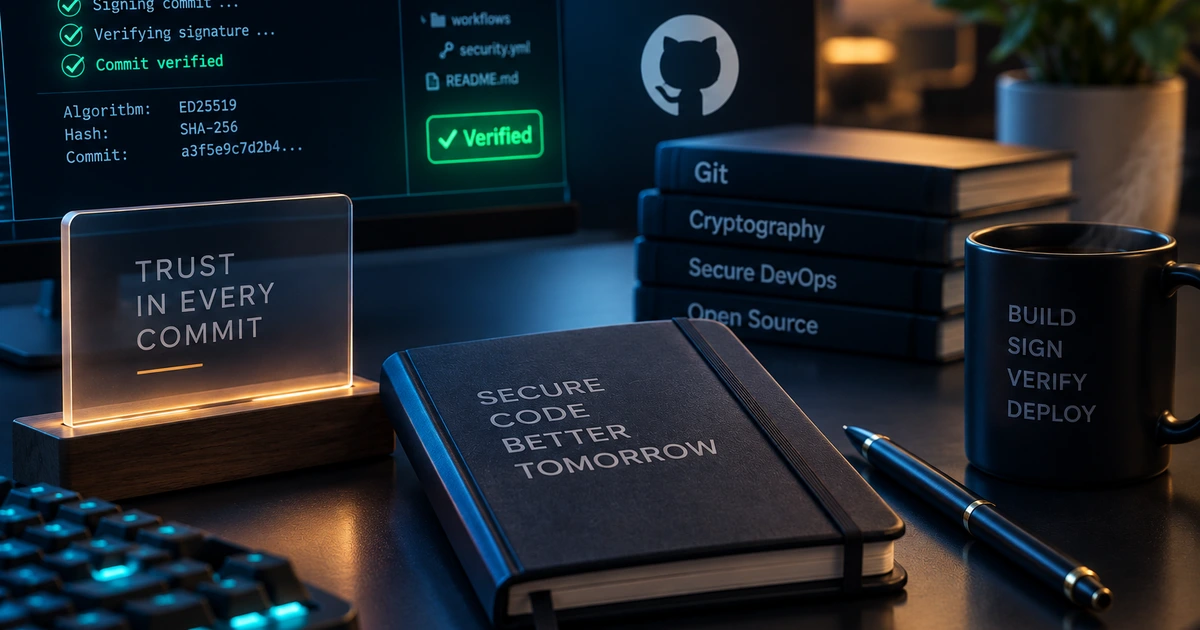
On platforms like GitHub, signed commits verified against your registered public key receive a green Verified badge. In regulated industries (SOC 2, ISO 27001, HIPAA) and hardened CI/CD pipelines, branch protection rules can block pull requests containing any unsigned commits.
Verification Lifecycle
- Local Signing: When you run
git commit, Git invokes your SSH agent to sign the commit object using your private key (~/.ssh/id_ed25519). - Payload Encapsulation: The signature is embedded directly into the Git commit object header alongside author metadata and tree hashes.
- Remote Validation: Upon
git push, the remote forge (GitHub or GitLab) looks up the signing key against your registered public keys. - Supply Chain Proof: Matching signatures receive the cryptographically confirmed Verified badge; unregistered or altered commits fail validation.
Why SSH Signing Over GPG?
Historically, signing Git commits meant managing GnuPG (GPG) keys. For over a decade, developers tolerated cumbersome GPG tooling: complex command-line syntax, arcane expiration policies, external smartcard daemon crashes, and separate keyrings that had to be backed up independently of standard SSH keys.
Starting in Git version 2.34 (released in late 2021), Git introduced native support for signing commits and tags directly with SSH keys, specifically modern Edwards-curve Digital Signature Algorithm (ED25519) keys.
Because developers already maintain and protect SSH keys for remote repository authentication, switching to SSH signing requires no external daemons or specialized cryptography suites. You use the tools already on your machine.
Step 1: Generate a Modern ED25519 Key
If you do not already have an ED25519 key pair, generate one in your terminal:
ssh-keygen -t ed25519 -C "your.email@example.com"When prompted, save it to the default path (~/.ssh/id_ed25519) and protect it with a strong passphrase.
Step 2: Add Your Public Key to GitHub
GitHub separates Authentication Keys (used for git push and git pull) from Signing Keys (used to verify commit signatures).
- Copy your public key to your clipboard:
cat ~/.ssh/id_ed25519.pub - Navigate to GitHub Settings → SSH and GPG keys.
- Click New SSH Key.
- In the Key type dropdown, select Signing Key.
- Paste your key and save.
Step 3: Configure Git for SSH Signing
Configure Git to use SSH for signing operations and specify your public key path:
# Tell Git to use SSH instead of GPG
git config --global gpg.format ssh

# Point Git to your public key
git config --global user.signingkey ~/.ssh/id_ed25519.pub

# Automatically sign all future commits
git config --global commit.gpgsign true

# Automatically sign all future tags
git config --global tag.gpgsign true
Platform Setup & Troubleshooting
macOS: Solving the Keychain Trap
On macOS, developers often attempt to cache their SSH passphrase in the Apple Keychain using flags mentioned in older guides:
ssh-add --apple-use-keychain ~/.ssh/id_ed25519On several macOS installations (especially when using custom OpenSSH builds or older terminal environments), this command fails with an error:
ssh-add: illegal option -- -
usage: ssh-add [-CcDdKkLlqvXx] [-t life] [file ...]
This error occurs when running an upstream or Homebrew-installed OpenSSH binary instead of Apple's stock utility, or when using legacy flags.
Solution 1: Version-Specific Command
- macOS Monterey (12.0) and later: Invoke Apple's bundled OpenSSH utility directly:
/usr/bin/ssh-add --apple-use-keychain ~/.ssh/id_ed25519 - macOS Big Sur (11.0) and earlier: Use the legacy flag:
ssh-add -K ~/.ssh/id_ed25519
Solution 2: Automated SSH Configuration (Permanent & Recommended)
To ensure your SSH key is loaded into ssh-agent automatically across terminal restarts while maintaining compatibility across both Apple's system OpenSSH and Homebrew OpenSSH, configure ~/.ssh/config:
Host *
  AddKeysToAgent yes
  IgnoreUnknown UseKeychain
  UseKeychain yes
  IdentityFile ~/.ssh/id_ed25519
Note: Adding
IgnoreUnknown UseKeychainprevents third-party OpenSSH builds from aborting with an unrecognized option error when reading the macOS-specificUseKeychaindirective.
Linux: Native SSH Agent Integration
On modern Linux distributions, ensure ssh-agent is initialized in your shell environment:
eval "$(ssh-agent -s)"
ssh-add ~/.ssh/id_ed25519
To persist the agent across login sessions, add the eval snippet above to your ~/.bashrc or ~/.zshrc. On distributions supporting systemd user units (such as Arch Linux or Fedora with systemd user integration), you can also manage the agent as a background service:
systemctl --user enable --now ssh-agentConfiguring Local Allowed Signers
While GitHub verifies signatures automatically in the cloud, you can also verify signatures locally in your Linux terminal. Create an allowed signers file:
# Set Git configuration
git config --global gpg.ssh.allowedSignersFile ~/.ssh/allowed_signers

# Append your identity and public key
echo "$(git config user.email) namespaces=\"git\" $(cat ~/.ssh/id_ed25519.pub)" >> ~/.ssh/allowed_signers
Windows: OpenSSH Service Setup
Windows 10 and 11 include built-in OpenSSH client utilities. To configure automatic agent handling:
- Open PowerShell as Administrator and enable the
ssh-agentservice:
Get-Service -Name ssh-agent | Set-Service -StartupType Automatic
Start-Service ssh-agent- Add your private key to the agent:
ssh-add $env:USERPROFILE\.ssh\id_ed25519- Configure Git for Windows (via PowerShell or Git Bash):
git config --global gpg.format ssh
git config --global user.signingkey ~/.ssh/id_ed25519.pub
git config --global commit.gpgsign true
Verifying Your Signed Commits
Once configured, any standard commit command will automatically generate an SSH signature:
git commit -m "feat(auth): enforce multi-factor authentication for admin routes"To inspect the cryptographic signature on your machine:
git log -1 --show-signatureYou will see output confirming the Edwards-curve signature:
commit 7a0e804f36c891e4a1120f2e519e917d5e4b10ac
Good "git" signature for cynthia@wamzii.com with ED25519 key SHA256:4bK3...
Author: Cynthia Wahome <cynthia@wamzii.com>
Date:   Mon Sep 14 10:45:00 2026 +0300

    feat(auth): enforce multi-factor authentication for admin routes
When pushed to GitHub, the commit is stamped with the green Verified badge, providing cryptographically verifiable proof of authorship.
Establishing Trust in Modern Engineering Teams
Cryptographic commit signing transforms identity verification from an honor system into a mathematically verifiable standard. By transitioning from legacy GPG configurations to streamlined ED25519 SSH keys, engineering organizations can eliminate friction, harden their CI/CD delivery pipelines against unauthorized tampering, and maintain end-to-end supply chain integrity across macOS, Linux, and Windows workstations.